

Sovereignty: A VPN Outside the Blast Radius
While running outdoor, my mind has all the time of the world to reflect. During one of my recent runs, I was thinking of my sovereignty journey that progressed nicely. In the previous months I tackled a lot of hurdles such as power failure resiliency, robust storage, remote backup, minimal overhead, centralized monitoring and alerting, infrastructure as code, private networking, internet connectivity.
Despite of these successes, a little voice kept nagging in my head. What if the container runtime goes down? What if critical services go down? What if mounts become inaccessible or the reverse proxy stops? I tried to counter argue with myself by throwing arguments as “how big is the chance?”, “If I’m behind my laptop I can fix it”. While both arguments are fair, I realized that if there are serious problems, likely the VPN Server container is down as well. I found a major flaw in my setup. I was occupied the rest of the run. I hate to waste a good run… sigh
While thinking this through, it became clear that runtime resilience is not a solution for this problem. Adding an additional node, running in a swarm or even in a Kubernetes setup doesn’t help if I can’t reach the system when something serious happens. My VPN was still running as a container inside the environment I was worried about. Not ideal. If the runtime has a bad day and I’m on a remote location, there is no way I can fix the problem.
So the conclusion was simple: I need a dedicated VPN server that lives outside the rest of the stack. A small, simple, boring appliance that does one job and keeps doing it, even when everything around it fails. No containers, no reverse proxy, no fancy routing. Just a stable entry point into my network so I can always get back in, regardless of what the rest of the infrastructure is doing. Given there is an internet connection and there is no major power outage (longer than 1 hour).
Appliances to the rescue
While exploring options for this dedicated access point, I started looking for something small, affordable, reliable and preferably not over‑engineered. During one of those late‑night internet searches, I stumbled upon the GL.iNet Brume 2.
A pocket‑sized OpenWrt device that does exactly what I need: act as a standalone VPN server without depending on any of my existing infrastructure. A simple, energy efficient (2 watts) physical appliance that keeps running even when the rest of the environment decides to take a break. It immediately felt like the right fit for this “always‑available entry point” idea. Without looking further I pushed the purchase button. A couple of days later, a nice little package arrived in my mailbox.
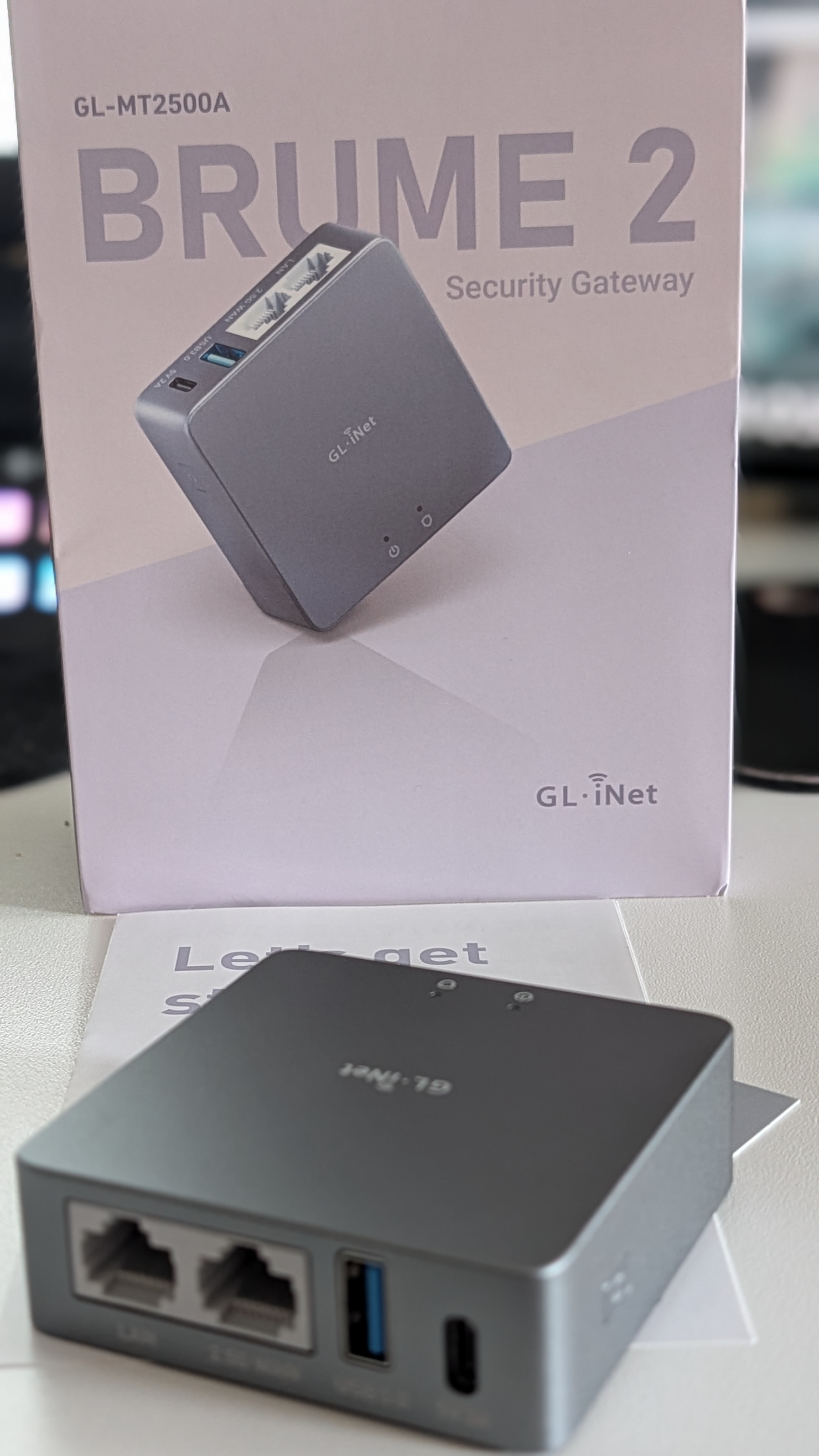
RTFM, why do I have to remind myself?
As a normal IT geek, I unpacked the device and started to configure the device without reading any instructions. My idea was to embed the device inside my netwerk, where I use port forwarding on the router to tunnel all VPN traffic to de device. What ever I tried it didn’t work. Mental note: RTFM
There was a little catch, the Brume 2 has a WLAN and a LAN port. It is a security device capable of running a VPN Server and VPN client at the same time. When configuring it, it turned out that you need to connect the WLAN port to a switch inside the network and the LAN port to your laptop. Within minutes the device was configured, updated to the latest firmware and good to go. Time to setup Wireguard VPN Server.
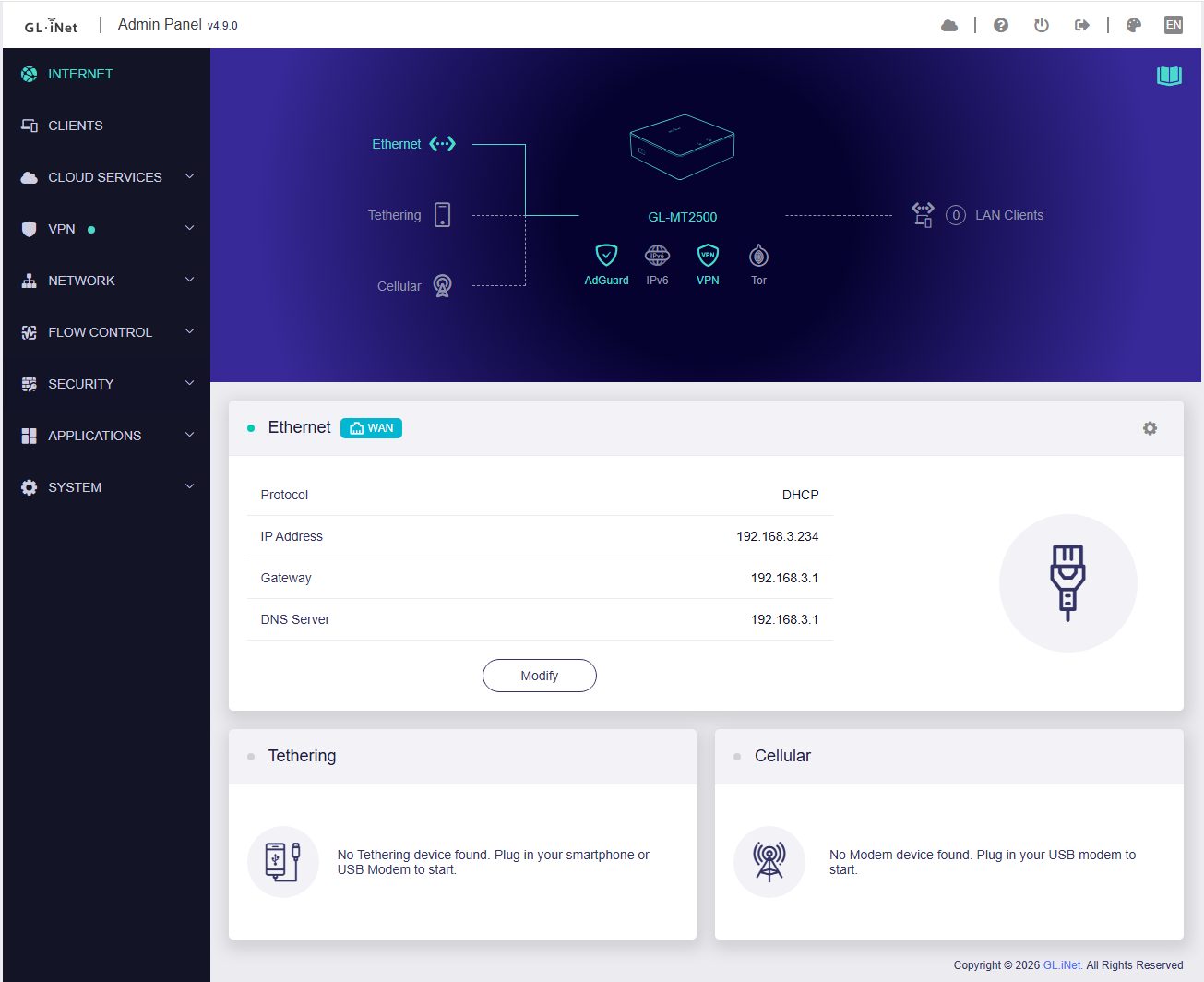
The WAN port is using DHCP to connect to the internal network, on the DHCP server of the internal network there is an IP reservation and port 51820 is forwarded to the Brume 2. Optionally I can connect a cellular modem to the USB port of the Brume, but for now I think this is a bit of overkill. I set up a VPN client profile, enabled it on my phone by scanning the QR Code. Once the VPN was enabled on the phone, I was able to connect to the internet using the Wireguard VPN on the Brume 2. Then I tried to connect to local resources on the private network, but that failed miserably. Servers could not be reached. Something was missing…
Wireguard on a Brume 2
WireGuard on a GL.iNet/OpenWrt router behaves differently when the device is connected to the home network through its WAN port. In that setup, the router’s WAN zone is actually the LAN, and the LAN zone is unused. Because of this, WireGuard traffic must be forwarded from the wgserver zone to the WAN zone. In order to get this straight I needed to change some advanced settings in the LuCI interface of the device.
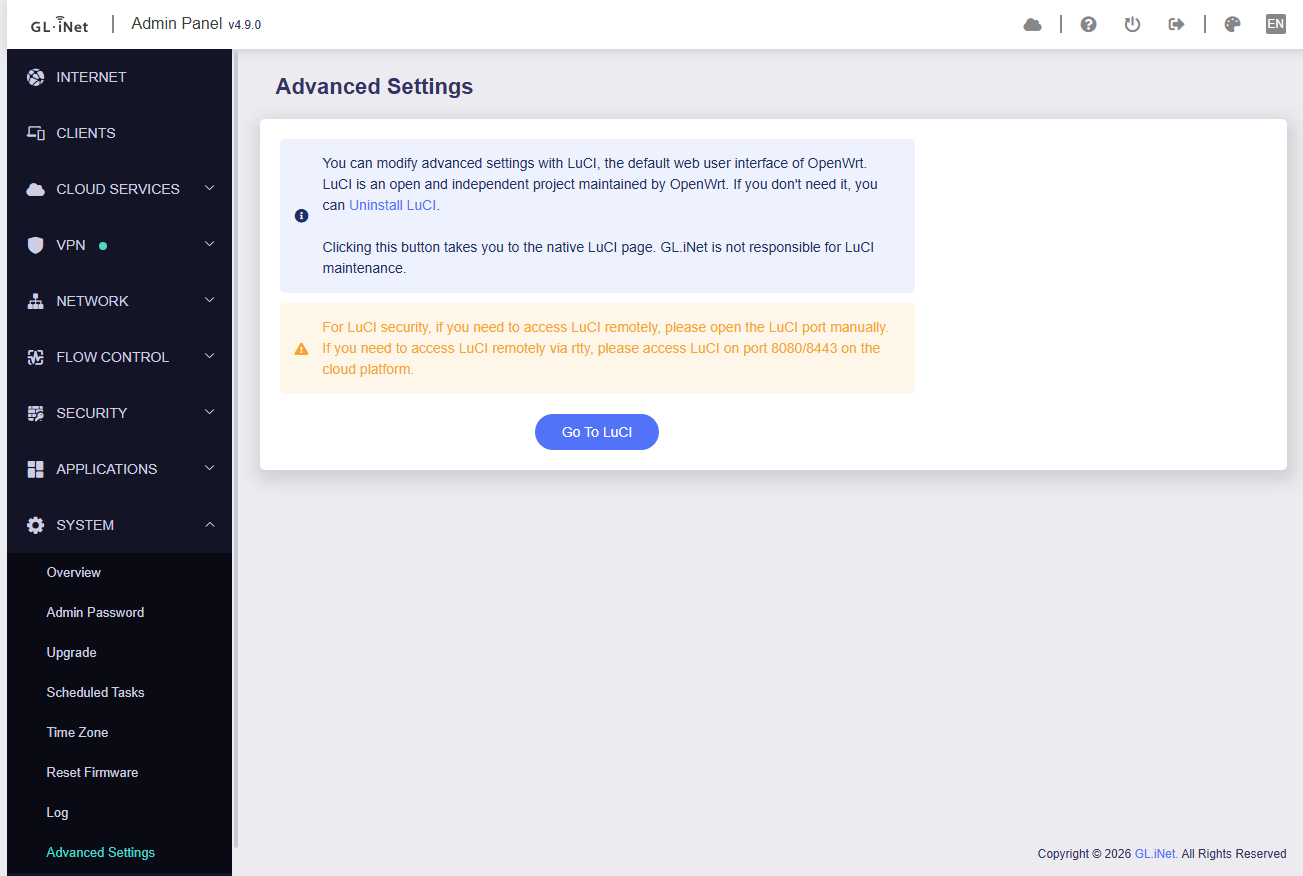
The LuCI interface gives you total control over the Brume2, such as altering the allowed traffic flows in the firewall settings on the device.
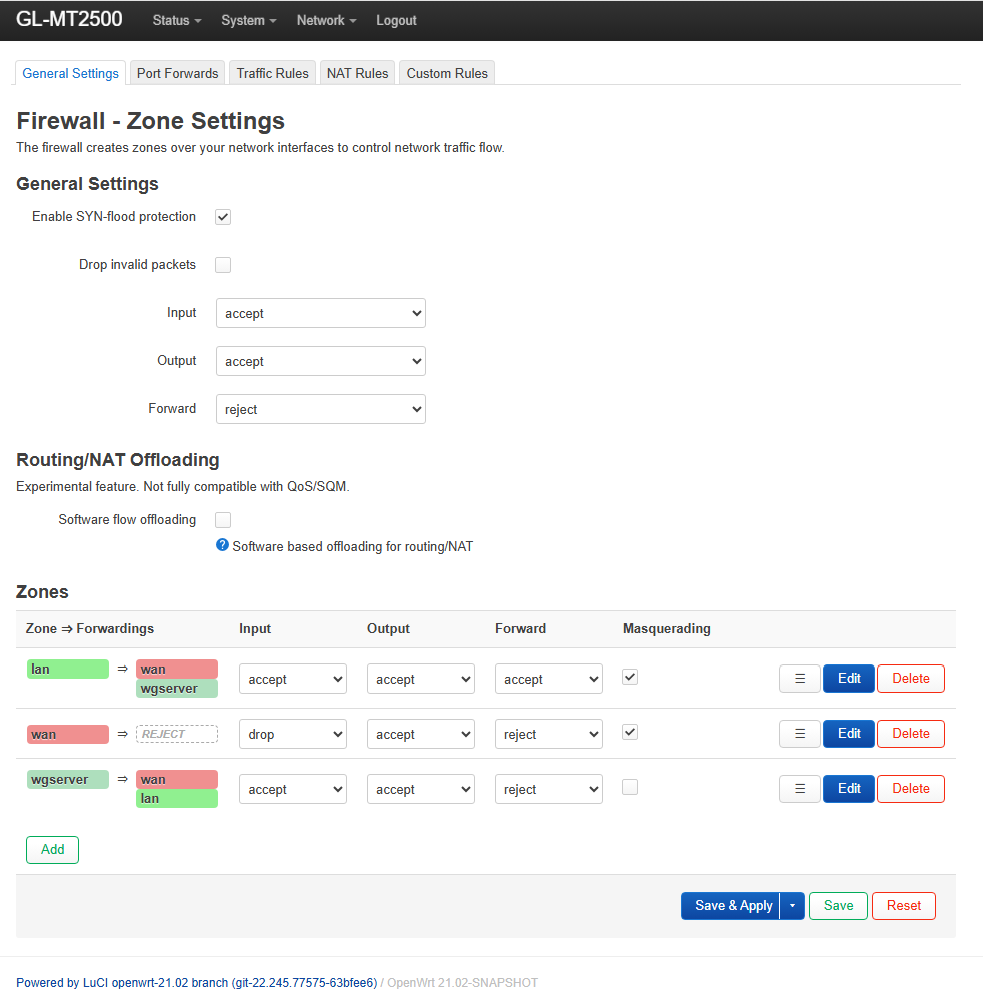
After changing the zone forwarding setting on tthe wgserver zone, the internal resources became technically reachable for VPN clients. The only thing left to do was to change the client profile to add additional IP ranges to the list of allowd IP’s. In the end my client profile looked like this
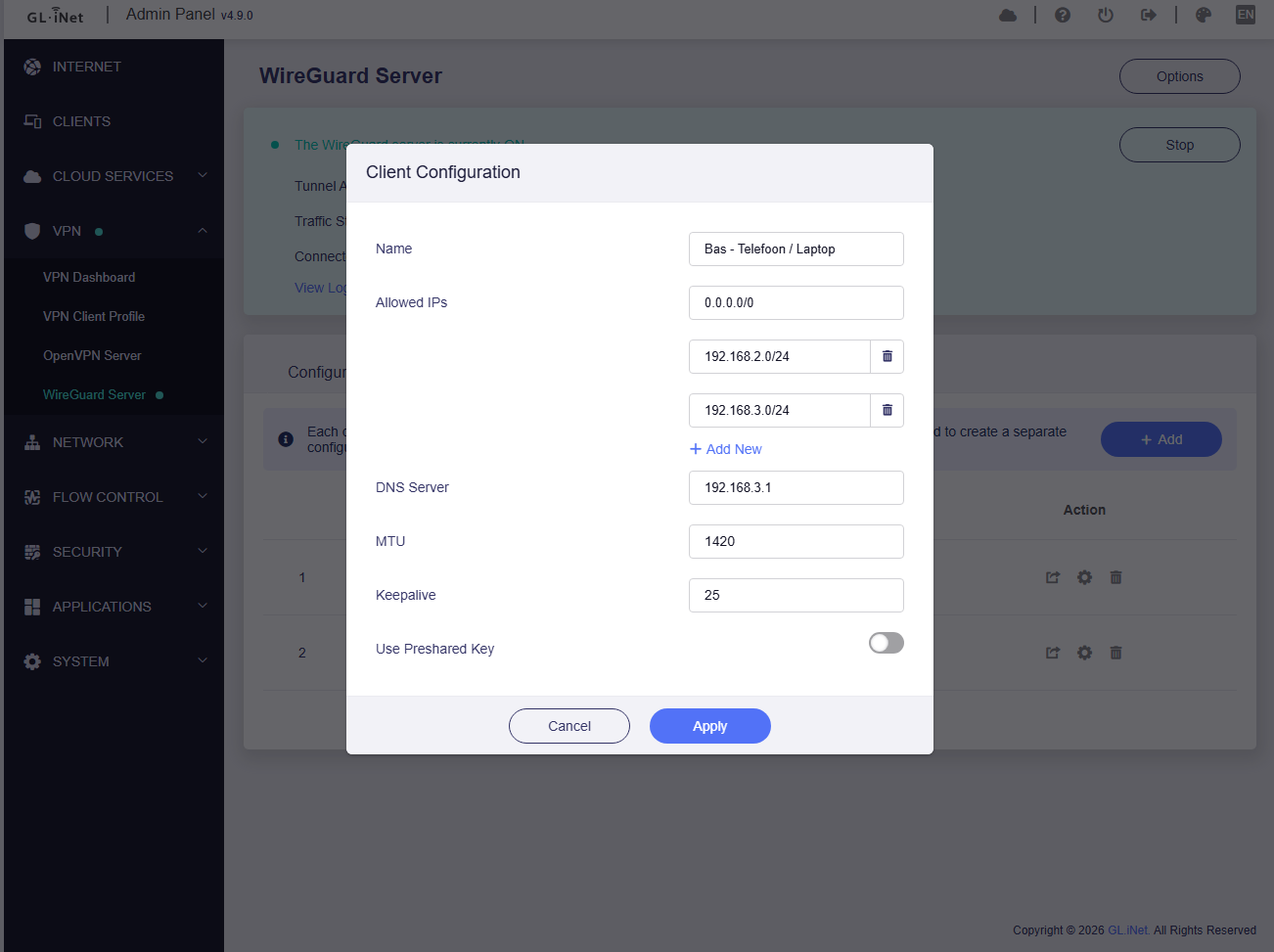
Next to the allowed IP of 0.0.0.0/0 (the internet), I added the IP range of the DMZ (192.168.2.0/24) and the IP range of the internal network (192.168.3.0/24). From that moment on, I was able to access the resources in my internal network. When you setup a new client profile, the DNS server is set to the 10.1.0.1 address, which is in the Brume 2 Wireguard server’s IP range. By pointing the DNS Server in the client profile to the DNS server of the internal network, the devices on the internal network were reachable as well.
Additional bonus (AdGuard home)
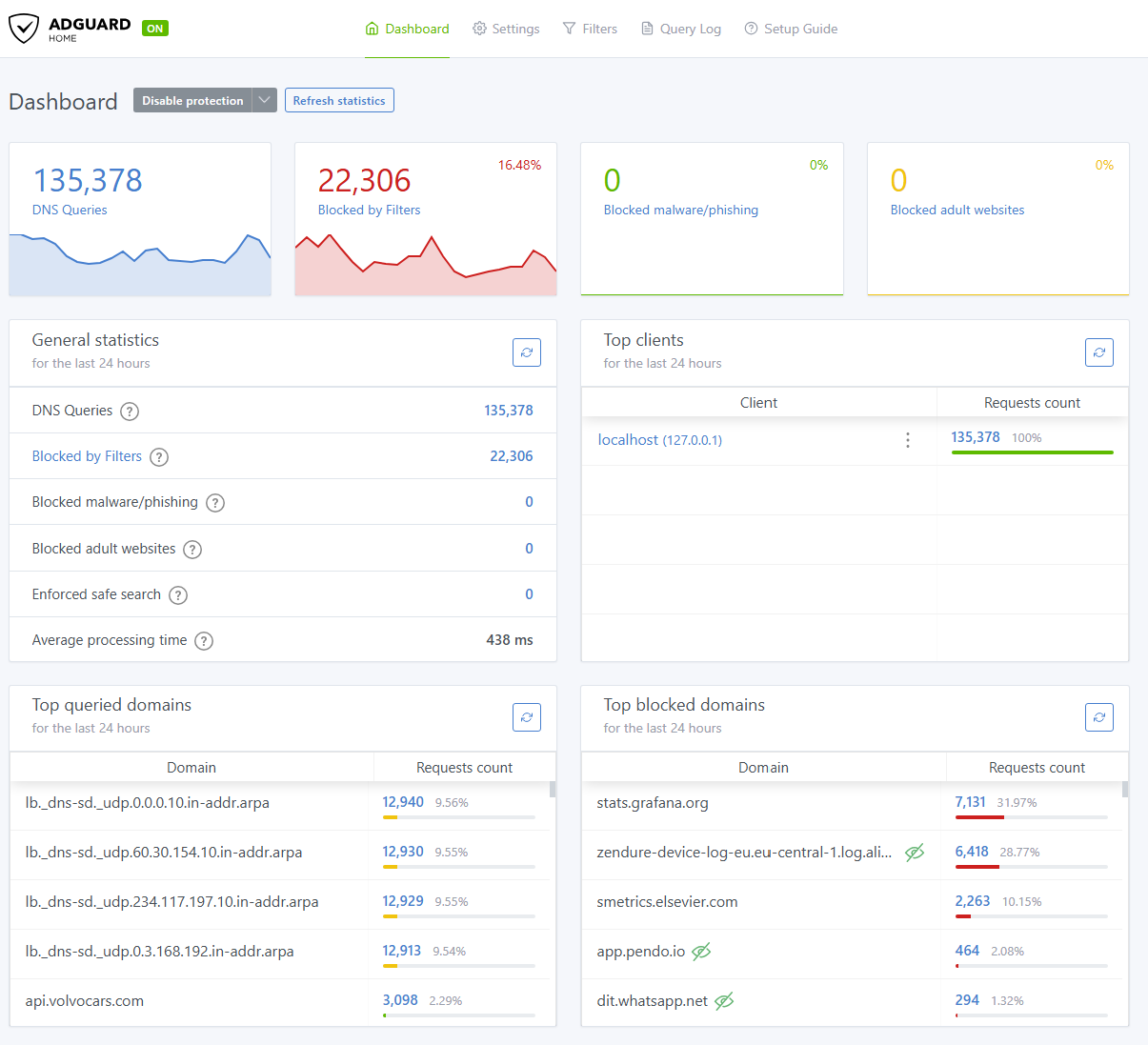
The Brume2 comes with AdGuard Home preinstalled. So instead of using a pi-hole or any other container, we can use the Brume 2 as a dedicated appliance to filter annoying tracking out of the network. The only thing required is to point the interal DNS sevrer on the internal network to use a custom DNS, which happens to have the IP address of the Brume2 (reserved DHCP address). On the Brume2 some final settings had to be made (besides activating AdGuard home) in order to open thr required ports.
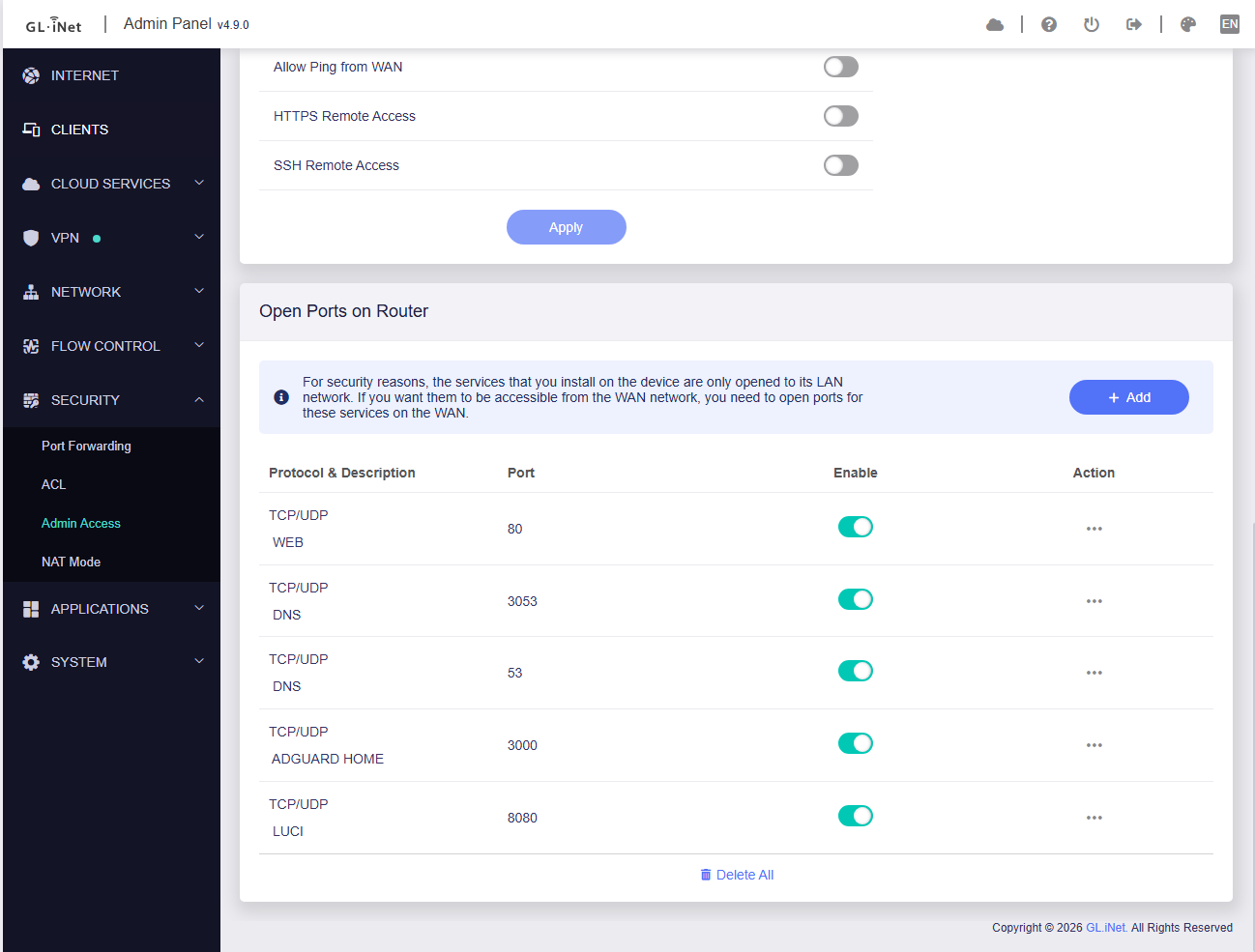
Because the Brume2 is hooked up to the network using the WAN port, we need to open up some ports. Ports 53 and 3053, used for DNS and AdGuard home. Port 80 for accessing the regular web interface. Port 8080 for accessing the LuCI interface. Port 3000 to access the AdGuard home dashboard.
Final thoughts
For now I’m perfectly happy with the dedicated VPN gateway, I only use a fraction of the possibilities of the device. In the future I can use it as a network VPN client to access external networks in a secure way, allowing me to extend my network the way I want to have it. The only weak spot… what if my internet connection crashes?
(there is a solution for that)