

A bit flip, a broken volume, and a cloud that kept running
Sometimes a problem is small enough to ignore, but not small enough to trust.
After a disk crash almost a year ago, a root table corruption remained on my Synology. Synology Support investigated and advised me to rebuild the affected volume. Not exactly how I had planned to spend my weekend.
The good news: the Synology is back, and the data has been copied back. Gitea and OpenCloud, however, needed a little more attention before they were ready to join the party.
What Synology found
Synology Support completed a file system check, after which volume1 remained unmounted. The file system logs showed numerous bitflip errors. According to Support, these are typically associated with RAM problems, and third-party memory could be responsible if it was in use. I replaced the RAM module.
This might also explain the corruption I wrote about in Backups: The Illusion of Safety. At the time, I replaced the drives in the RAID set with new WD Red disks. Looking back, the bitflips may have played a part in that earlier corruption too, although I cannot say for certain.
Support offered two options. The first was to attempt recovery by reverting to an older file system root generation. That might restore the volume to an error-free state, but success was not guaranteed and recent changes could be lost. If the older version still had errors, Support would revert it to the original version. Unfortunately, the recovery attempt did not succeed.
That left the second option: rebuilding the volume. Since the existing file system still contained errors, Support did not consider it suitable for continued use.
I am really happy with the level of support I received. My Synology is out of warranty for a long period of time, but that did not stop the team from helping me investigate and offering recovery options. Kudos to Synology for that.
The plan looked simple
My Synology provides central storage for services running on Calculon, my Linux server. The applications access their data over NFS. Taking the NAS offline also meant stopping the services that depended on it.
The plan was to bring the platform back in a controlled order, with storage first, followed by shared services and applications. During the downtime, the codingarchitect blog had to be available, which meant that we could not stop all services without consideration.
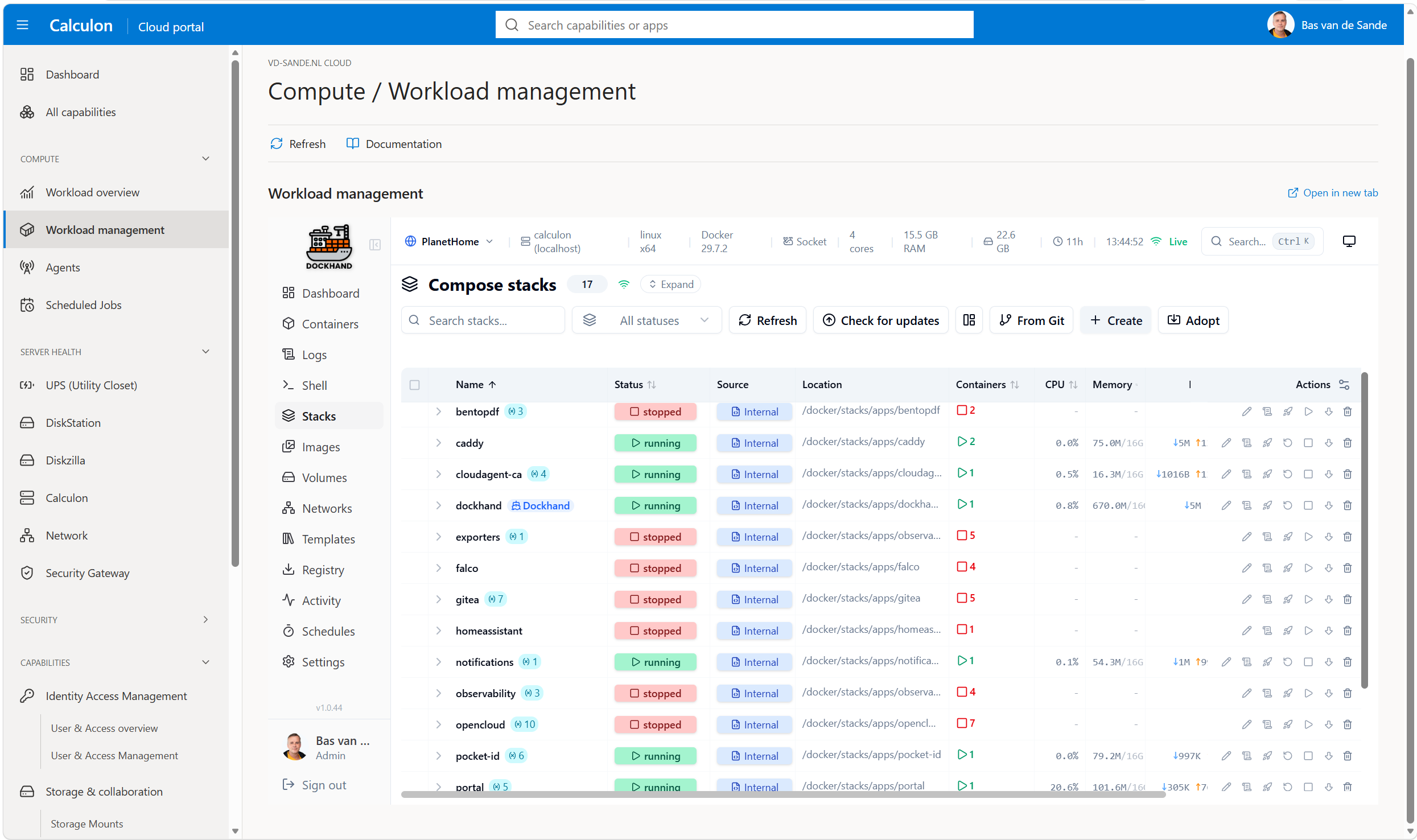
And then there were the backups. After that earlier experience, an independent copy of the important data was high on my list.
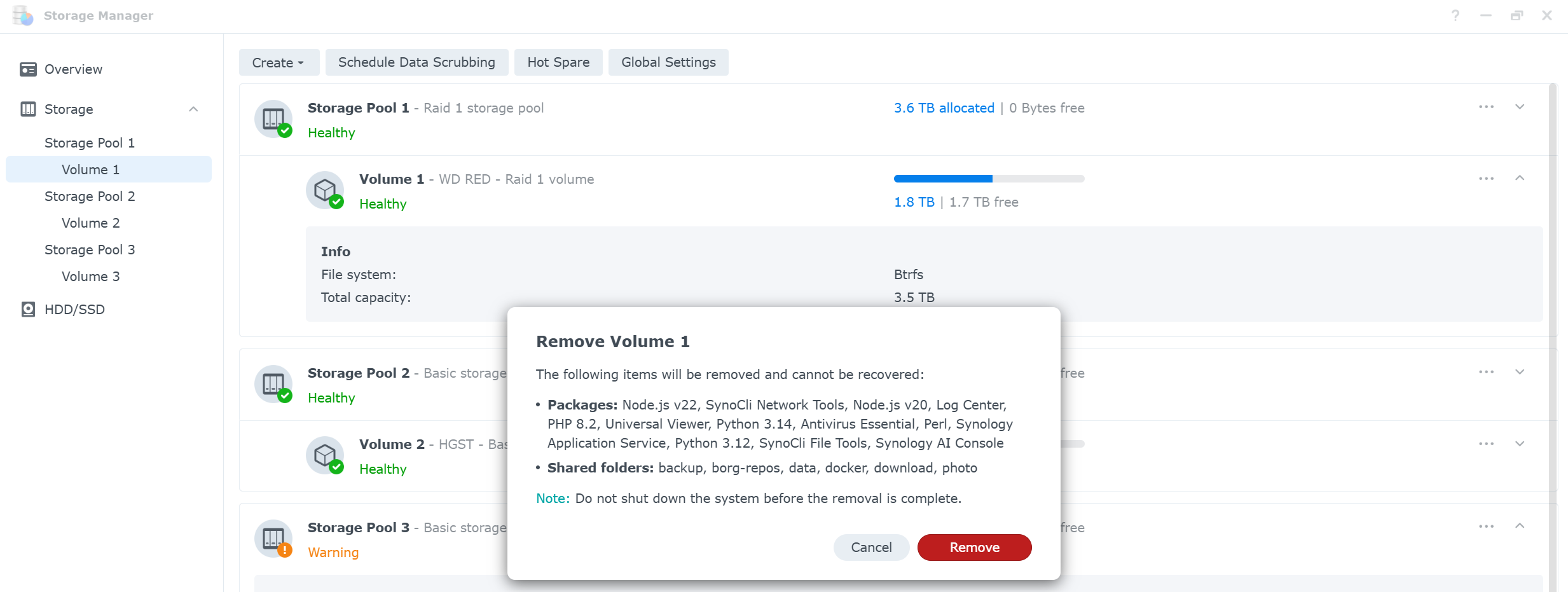
Removing the old volume
Synology did not simply let me remove the storage while other parts of DSM still depended on it. Storage Analyzer, Task Scheduler and Container Manager all had ties to the shared folders on that volume.
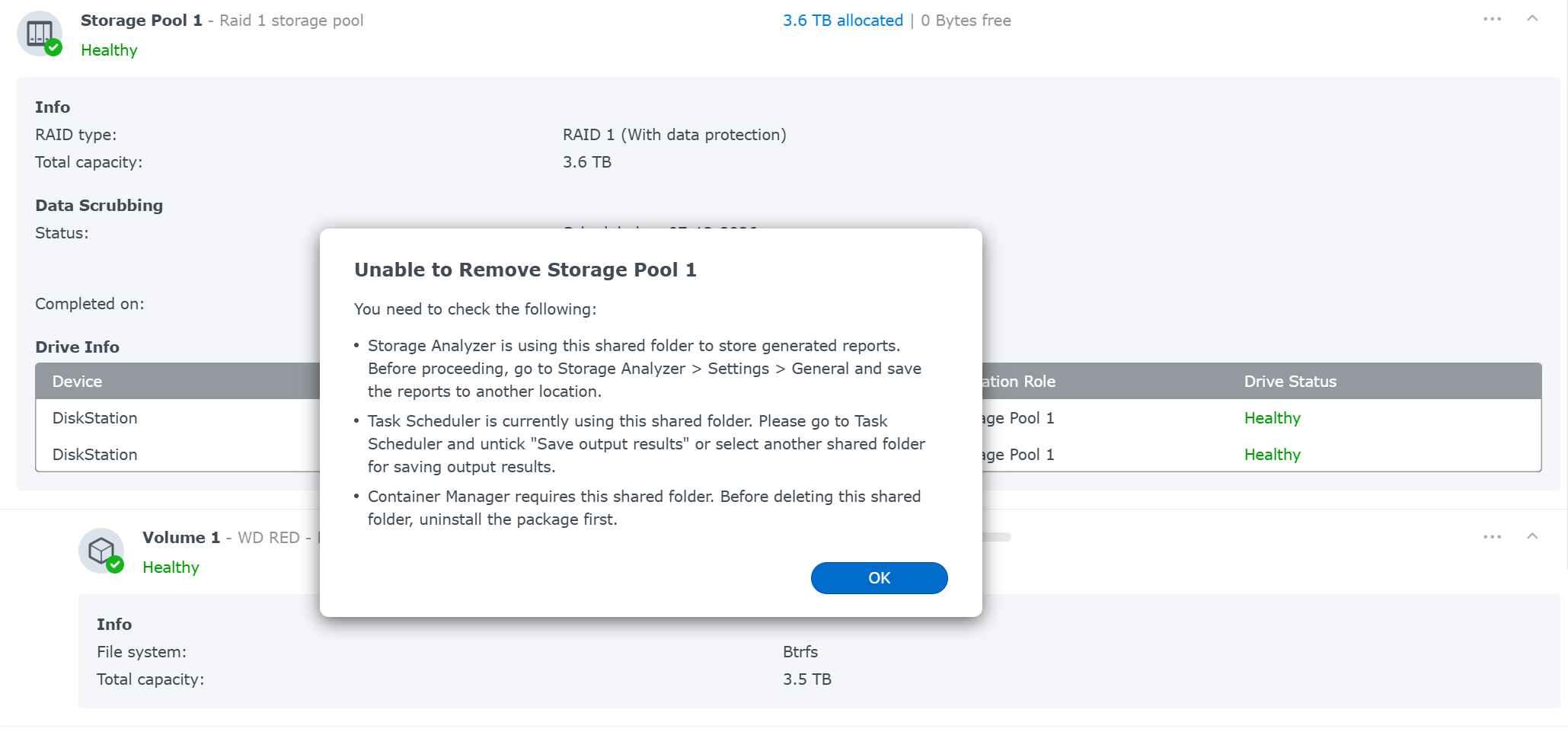
The removal warning was not subtle either. It listed the packages and shared folders that would be removed and could not be recovered. Even when you expect it, that is still an uncomfortable message to see.
With the old volume removed, a new volume could be created on the RAID 1 storage pool.
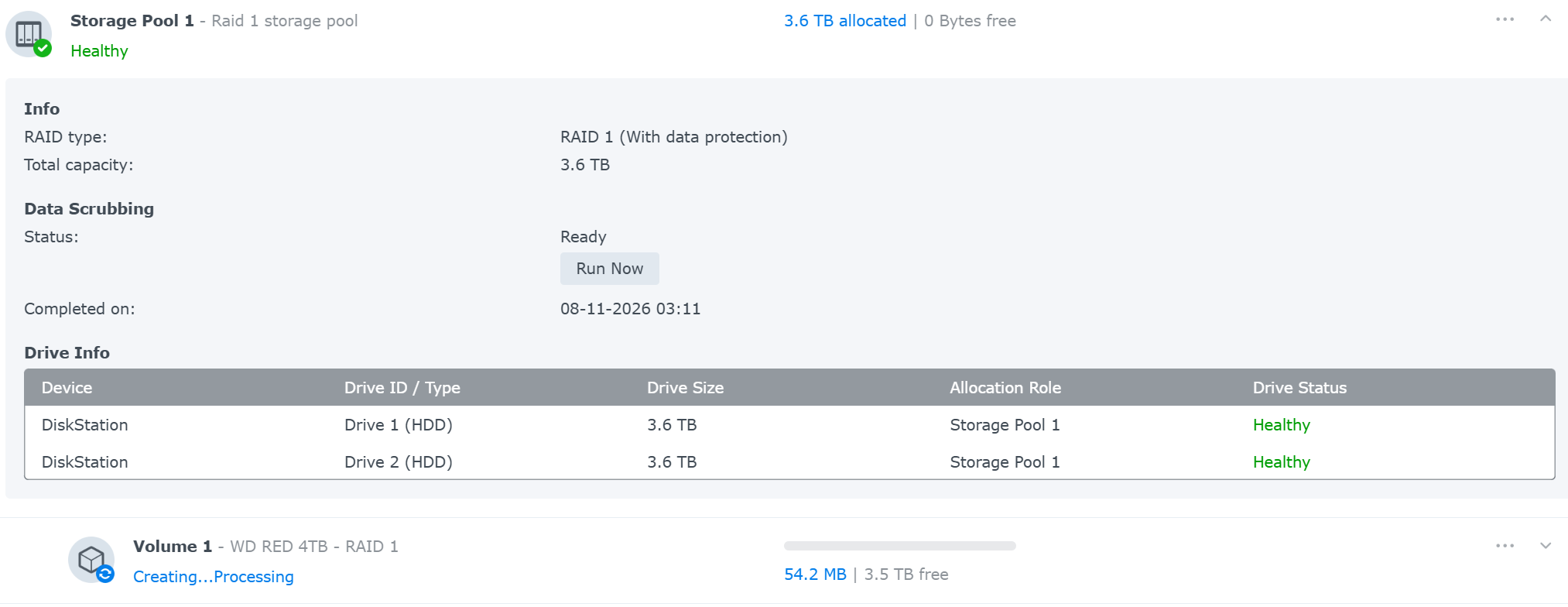
Once the storage was rebuilt and the data was back, it was time to bring the services up.
A mount point is not a mount
An NFS mount connects a directory on Calculon to a share on the Synology. But the directory on Calculon can still exist when the share is not mounted. Without a safeguard, Docker could bind that local, empty directory into a container instead of the real data.
On Calculon, systemd makes Docker depend on the required mounts. Before Docker starts, a preflight check also verifies that each target is a real NFS mount from the expected source, not just an existing directory or an automount waiting to connect. If the check fails, Docker does not start. The check does not, however, verify whether an application can read or write its files.
Gitea: the file was there, but not reachable
Gitea was not happy with its configuration:
stat /data/gitea/conf/app.ini: permission denied
The obvious suspect was app.ini. The file existed, though, and the problem was higher up in the directory tree. The top-level Gitea data directory had no Unix access permissions at all:
d--------- dockeruser users gitea
Gitea runs as UID 1027 and GID 100. It needs permission to traverse every directory on the way to its configuration file, not just permission to read the file itself.
Using namei -l showed the permissions along the entire path. After checking ownership, the missing owner permissions could be restored on the affected directory rather than changing the whole tree. If NFS refuses that change, it may need to be made on the Synology itself. I do not know why the permissions had changed.
OpenCloud had its own list
OpenCloud, my self-hosted file platform, had several separate issues. First, Dockhand reported that ocapps was missing a dependency: the one-time app-backend-storage-init container. The dependency was present in the Compose configuration, but the container itself was missing. Bringing the Compose stack up again recreated it; the initialization completed successfully and ocapps became healthy.
Then OpenCloud ran into a Stale file handle on its configuration NFS mount. The share still existed on the Synology, but the existing mount on Calculon could no longer be used.
I had little choice but to fix it right then. My family was waiting for their files, and I did not feel like listening to complaints 🙉 for the rest of the day. I stopped Docker and its socket, then rebuilt only the affected configuration mount. The automount was started before the mount. After checking the NFS sources and running the preflight, Docker could start again. Stopping a mount can also affect other services that depend on it, so this was not entirely without disruption.
And then there were the permissions. Several OpenCloud data directories and files had permission 000, preventing access to things like JetStream, the search index and the user database. The affected items belonged to UID 1027; why their permissions had changed is unknown.
After checking the ownership and stopping OpenCloud, I restored owner access for the affected UID within the data mount. That was a decision for this incident: the repair could also widen deliberately restricted owner permissions. Group and other permissions were left unchanged.
Back is more than running
After the fixes, OpenCloud ran without restarting and its local web interface returned HTTP 200. More importantly, I could log in and see my existing files. Gitea was healthy again, and its runner was running.
Throughout the downtime, this blog stayed online without anyone noticing that large parts of my cloud were offline. To me, this is what a cloud is about. A cloud is more than a single service: it is a collection of layers and services. In this case, one part could keep going while I repaired another.
The faulty RAM module is replaced and the storage rebuilt, the services are working, and the recovery notes are a little longer than before.
Hopefully I will not need them again anytime soon.