

Sovereignty: When the lights go out!
No matter how meticulously you set up your infrastructure, a power grid failure will take your servers down, unless you have a UPS (Uninterruptible Power Supply) to keep things running. A UPS takes over the power supply, until its battery runs out.
But here’s the catch: even the best UPS is pointless if your services don’t restart automatically when power returns.
I recently put this to the test while installing a car charger at home. For science and out of curiosity, I unplugged the main power line feeding the UPS. The UPS took over instantly, and the Lenovo server, network equipment, and the Synology NAS kept running smoothly.
After a configured 10-minute delay, the Synology sent a shutdown command to the Lenovo server. The Lenovo server complied, shutting down gracefully, followed by the Synology. The network held on until the UPS drained its last bit of power. So far, so good. This part of the experiment succeeded!
But then the real test came next: power restoration.
The Synology rebooted without issue, but the Lenovo server? Nothing. No response. Not quite the seamless recovery I had in mind.
A UPS alone isn’t enough
A UPS is just the first step. If your servers don’t power back on automatically after an outage, you’re still left with manual intervention, and that defeats the purpose of “uninterruptible” operations. True continuity requires planning for what happens after the power returns.
First things first
In my situation I have a UPS attached to the Synology. As soons as something is wrong with the grid, the Synology receives a signal from the UPS. This works out-of-the-box, with minimal configuration on the Synology.
In the Control Panel of the Synology, under “Hardware & Power”, you can specify if you want to enable UPS support. My UPS is connected to the USB port on the Synology, by enabling the option the UPS is recognized and ready to work. I changed the time before the Synology enters standby mode to 10 minutes. In the “Device Information” panel, the estimated battery seconds can be found, in my case more than 2.000 seconds.
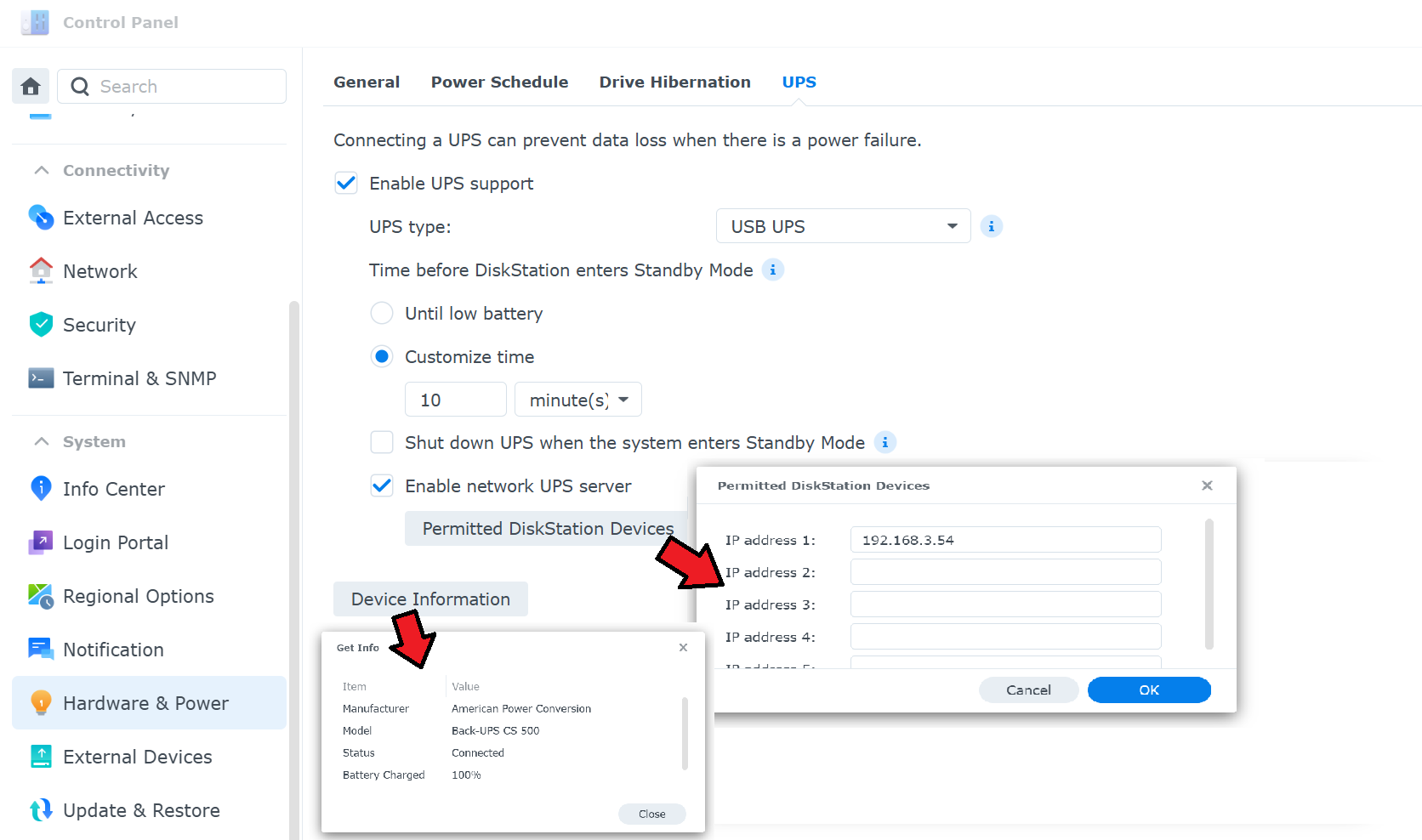
The Synology can trigger other devices to shutdown, this can be done by adding the IP addresses of the devices to the list of “Permitted DiskStation Devices”. For this the Synology takes the role of a NUT server (Network UPS Tools); open-source software that monitors and manages UPS devices over a network, enabling safe shutdowns and alerts during power outages.
Getting “NUTs”
On my Lenovo Server (Debian Trixie) I had to install the NUT-client.
sudo apt update
sudo apt install nut-client
In the file /etc/nut/nut.conf specify that the server has to act as a client machine
MODE=netclient
In the file /etc/nut/upsmon.conf ensure the following values
MONITOR ups@192.168.3.200 1 upsmon secret master

...

SHUTDOWNCMD "/sbin/shutdown -h +0"
- ups@192.168.3.200: insert your server ip here.
- 1: Port (standard is 3493, not explicity set).
- upsmon: user name known on the server.
- secret: password known on the server.
- master: Role of this client (can be slave as well).
- SHUTDOWNCMD: forces server to shutdown immediately.
To be sure that the configuration is applied, execute the following commands.
sudo systemctl restart nut-client
sudo systemctl enable nut-client
From this point, my Lenovo server shutted down when instructed by the NUTS server (Synology).
Bring her back to life!
Shutting down is one thing, awaking when needed is something else. In order to do that the BIOS in your machine either need to support Wake-On-LAN (WOL) or need to support auto start when power becomes available.
Before I bothered to hook my Lenovo PC to a display, I tested if she supported Wake-On-LAN. Using Debian you can query the Bios flags.
First, I needed to install the ethernet tools package, after that I was able to query if WOL is supported.
sudo apt install ethtool

sudo ethtool eno1 | grep Wake-on
        Supports Wake-on: pumbg
        Wake-on: g
The output of the ethtool (on the eno1 network interface of my Lenovo) shows that Wake-on is supported. No need for me to peek inside the BIOS.
Wake-on-LAN (WOL) is a nify feature, in which machines can be powered on remotely over the network by sending a “magic” packet. The magic packet is a specially formatted Ethernet frame that contains:
- 6 bytes of 0xFF (synchronization stream)
- 16 repetitions of the target device’s 48-bit MAC address (6 bytes each)
When a machine with WOL enabled is turned off, the network card remains powered in a low-power state, waiting to be summoned back to life.
Summoning the Server
The Lenovo server is prepared to get back to life once summoned, but then we need the Synology to perform that task.
For this, I installed the community package “SynoCli Network Tools”, which includes the etherwake utility.
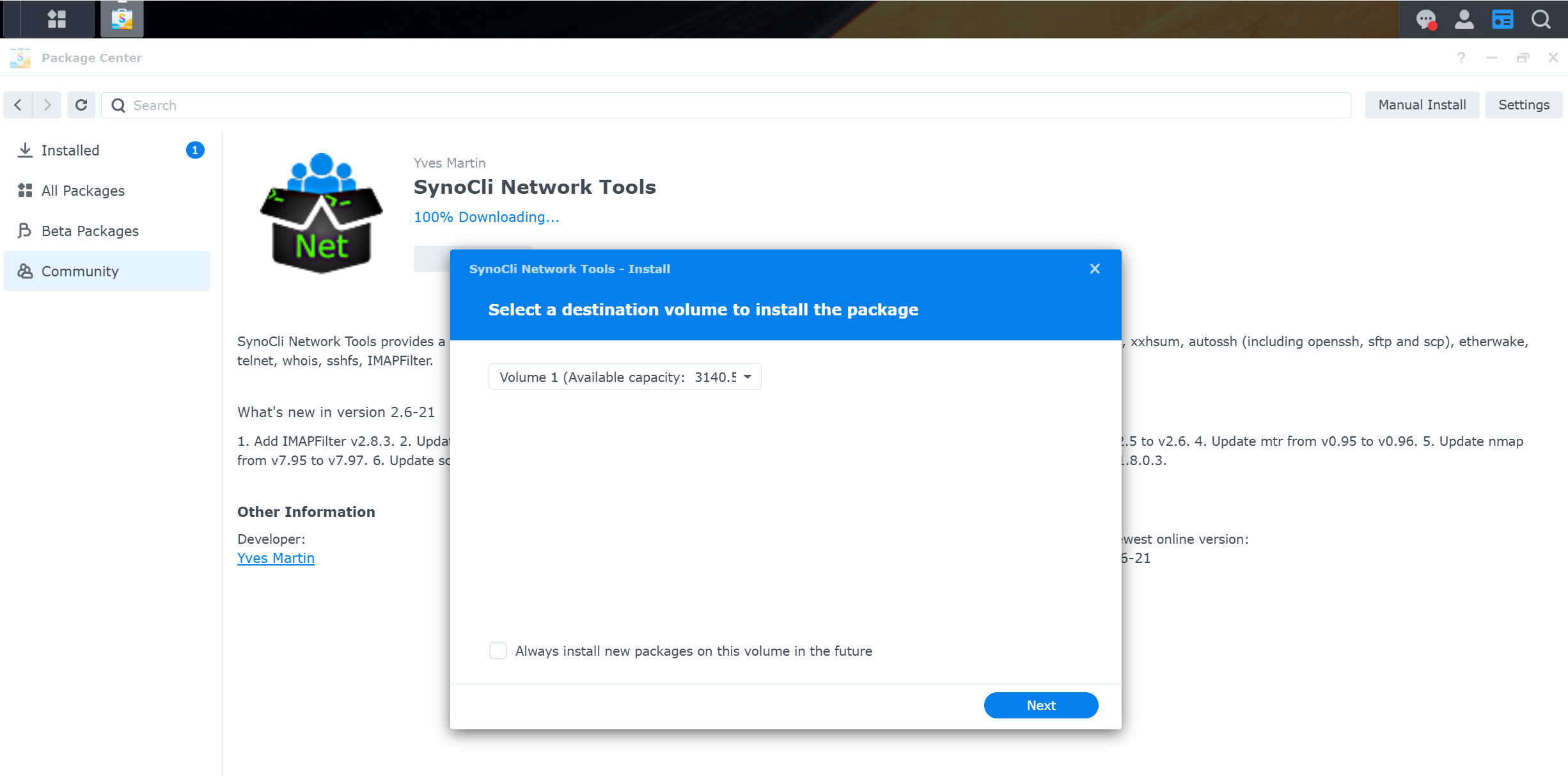
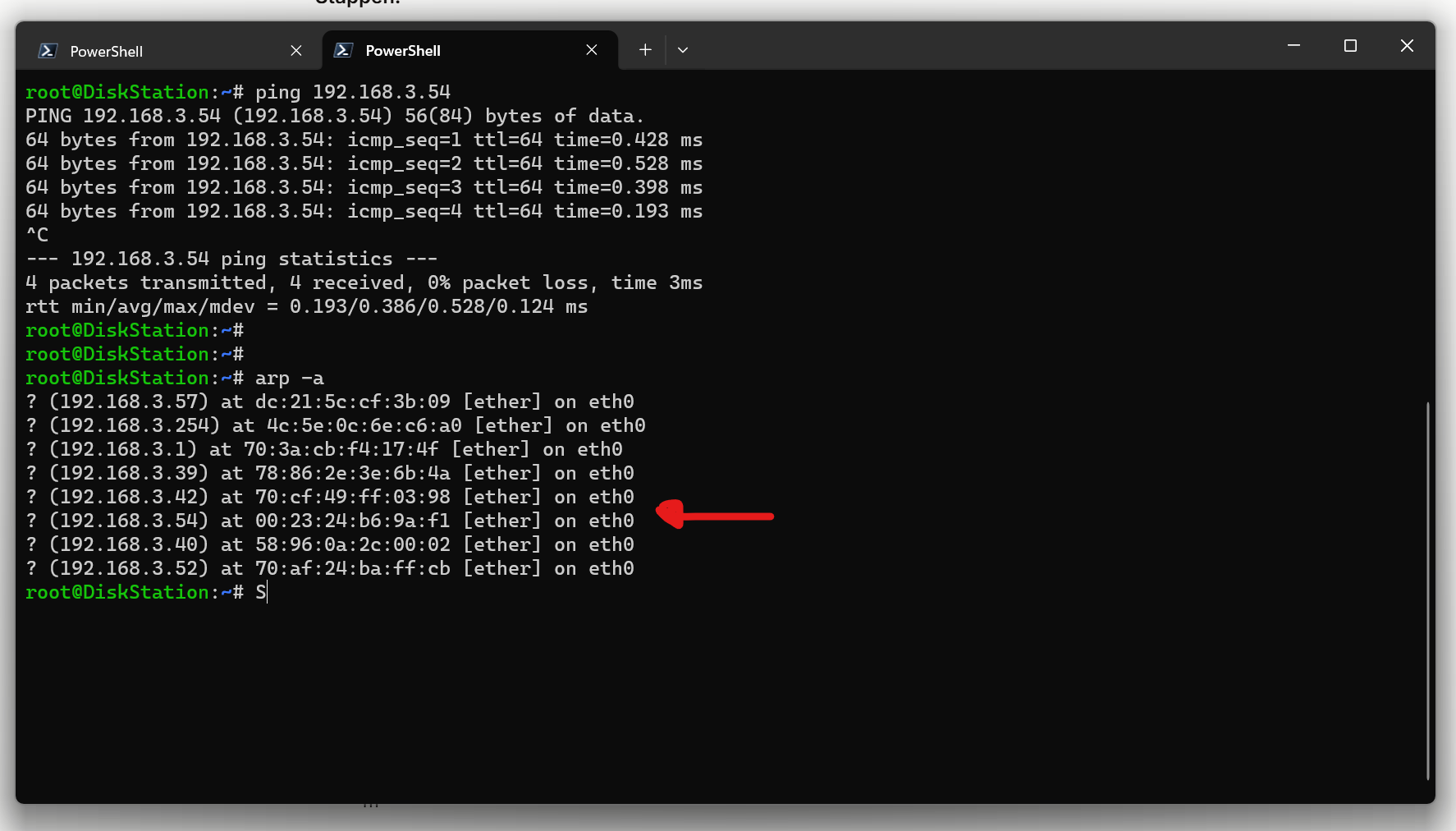
After installation, I obtained the Lenovo server’s MAC address by pinging 192.168.3.54 and then running arp -a.
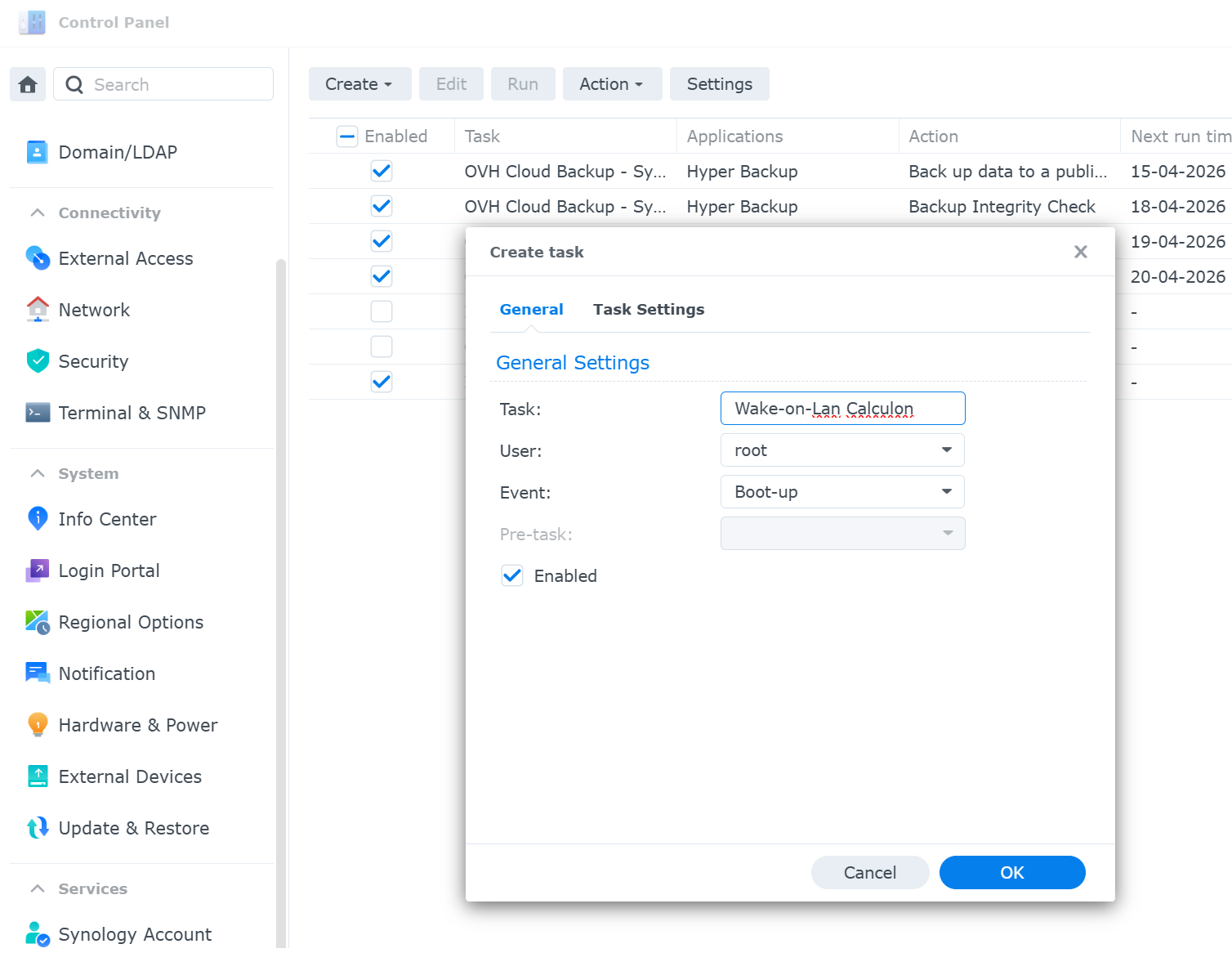
On the Synology, I set up a triggered task that runs once the system completes its boot sequence.
First specify the name, user context and the event (boot-up):
Then specify the run command (etherwake):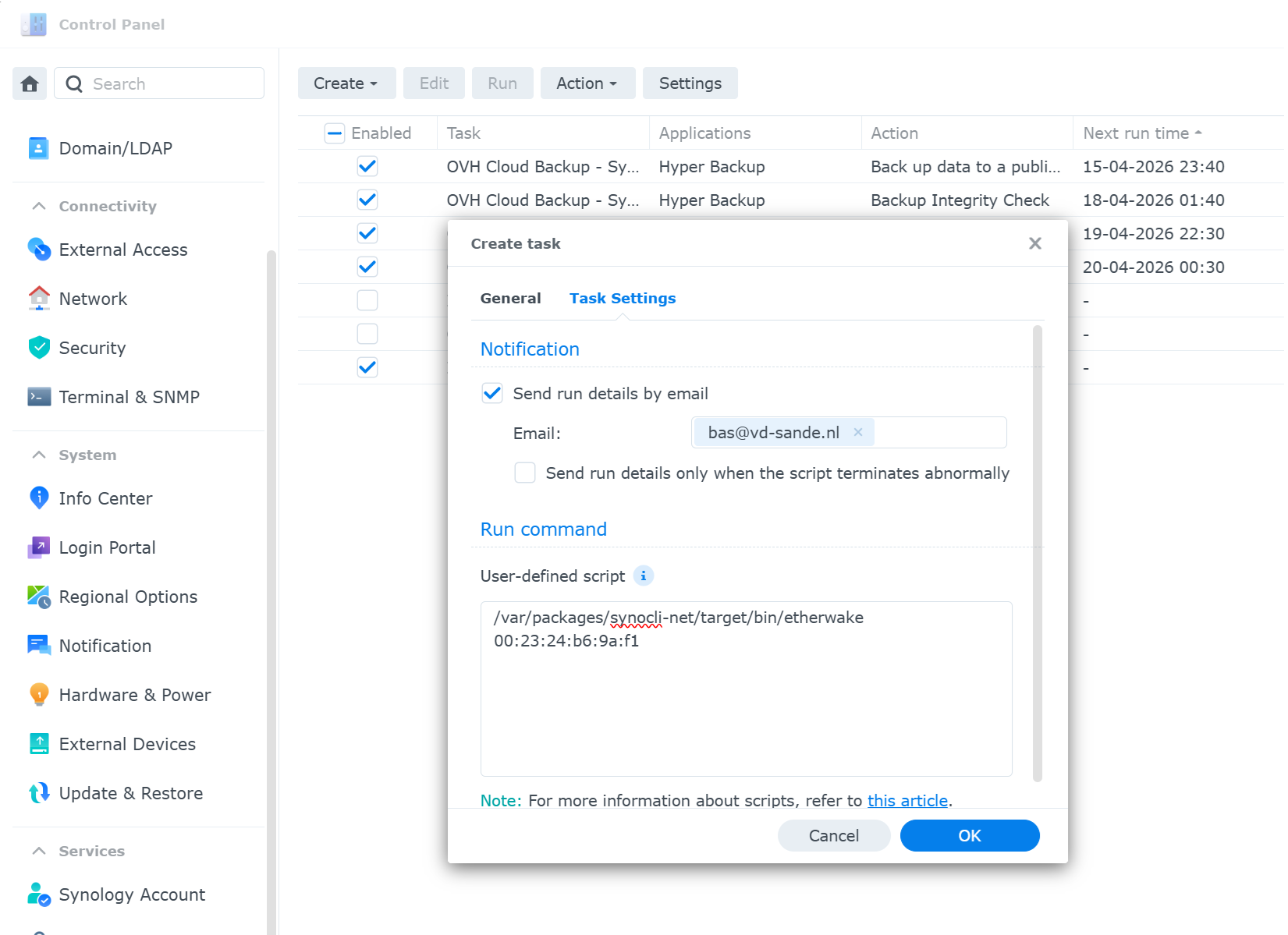
Once done, I turned off the Lenovo server and triggered the wake up task. Within seconds the server was running.
End good, all good?
The machine rebooted and Docker started, but my containers ended up in a crash loop. It turned out that Docker started too early, the mounts were not yet restored.
Bummer!
To ensure Docker only starts after all dependencies are ready, I used a standard systemd override, a common pattern for controlling daemon behavior.
The NFS mounts should always be available before Docker starts. For this, I customized the Docker systemd service with an override. Docker has to wait for the network to be available.
I added an override instruction for the docker daemon.
sudo mkdir -p /etc/systemd/system/docker.service.d
sudo nano /etc/systemd/system/docker.service.d/override.conf
In the override.conf file, I placed the following content.
[Unit]
Requires=network-online.target
After=network-online.target

[Service]
ExecStartPre=/bin/mount -a
This configuration forces Docker to wait until the network is online. once the network is online, then force all mounts to be created. Once done start Docker.
I shutdown the Levono server, and triggered the wake up task on the Synology. Once again the Lenovo server came back to life, this time with a Docker environment running smooth as butter.
Beating power failures
I successfully built a server setup resilient to power grid failures. Allowing machines to shutdown gracefully, in order to restore operations once power has been restored.
Mission accomplished!